
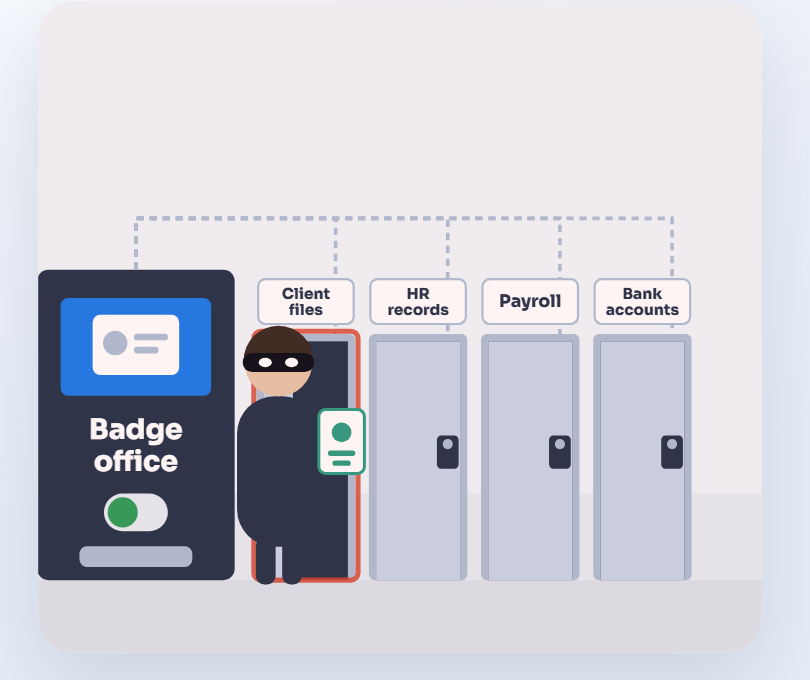
Staff don’t connect apps or AI tools on their own. Every connection is approved and gets its own narrow key.
What it means
AI tools reach your data through connections: apps people approve with a click, and keys that let one system sign in to another. What may connect to your business is a business decision. Make it a policy with an approval process, instead of leaving it to whoever clicks Allow.
A common attack sends someone to a real Microsoft or Google sign in page, where they approve an app that then reads their email or files. That approval can outlast a password change, because the app’s access is a separate permission.
Many apps also connect with a single key, often called an API key or token, that opens everything in an account, to read and to change. If an AI tool holds that key, a mistake, a bug or a trick can reach everything the key can.
A simple example
In April 2026, an AI coding agent at a software company found a key that had been created for managing custom web domains, but could do anything on the hosting account. It deleted the company’s live database, and its backups, in 9 seconds. The hosting company restored the data within an hour (The Register).
Apps cause the same trouble. Someone gets a “shared file” link, signs in on the genuine Microsoft page, and approves an app called “Document Viewer”. The app keeps its access after they change their password the next day, until an admin removes it.
Do it yourself
For apps in Microsoft 365 (Microsoft Entra admin center)
- Go to Entra ID, then Enterprise apps, then Consent and permissions, then User consent settings.
- Choose “Do not allow user consent”, and save.
- On Admin consent settings, turn on “Users can request admin consent to apps they are unable to consent to”, choose who reviews requests, and save.
- Existing approvals stay in place, so review them next. Go to Enterprise apps, All applications, choose an app, then Permissions. To remove an app, set “Enabled for users to sign-in?” to No under its Properties, or delete it, then revoke the affected users’ sessions.
For apps in Google Workspace
In the Admin console, go to Security, then Access and data control, then API controls. Choose how unconfigured third party apps are handled, and block the ones you don’t trust.
For keys
- Give each tool its own key, with the narrowest permissions and an expiry date.
- Where possible, have each person connect with their own account, so the tool sees only what they can see.
- Keep keys in a password manager or vault, never in chats, documents or code.
- Ask vendors whether they offer limited keys. If a product only offers one key that opens everything, treat that as a real limitation, and sometimes as a reason to choose a different vendor.
Also
Treat AI connectors and plugins the same way, along with the assistants, agents and automations staff build themselves. They stay off until someone approves them.
How to check
- Sign in as a test user to an app you haven’t approved. You should see “Approval required” (or “Need admin approval”), and the request should reach your reviewers.
- For each connection, find out everything its key is allowed to do. If that includes deleting your data, narrow the key or replace it.
What that misses
Approvals given before the change stay in place until someone reviews them, and every new app request needs a decision. Keys get pasted into emails, chats and scripts, and old ones keep working until someone switches them off. You also can’t narrow a key the vendor doesn’t offer.
What we do for you
We switch off one click approvals and go through the apps already approved, removing the ones nobody needs. When staff ask for a new app, we review the request. We also move your tools’ keys into a password manager, narrow or replace the ones that open too much, and tell you which vendors only offer keys that open everything.
“What we do for you” describes work we do for our clients, and what’s included depends on your plan. Already a client? Your engineer can tell you what your plan covers.
Back to all rulesGet the full guide
Technology, managed by people.
The real McCoy: real oversight, real understanding, real answers. Start with a free AI Check.